AI really, really, really wants to write your emails for you, and with Google’s AI Gemini now in your inbox, your Gmail can feel a little out of your hands.
If you’re worried about privacy, feel like your writing skills are becoming too reliant on AI, or simply don’t need Gemini features, it’s pretty easy to disable Gemini in Gmail, as well as other Google platforms like Drive, Calendar, Meet, Maps, and more.
Here’s a handy guide to switching it off.
How to turn off Gemini in Gmail
- 5 min
- Laptop
- desktop or smartphone
- Gmail
Step 1:
Open Gmail.
Step 2:
Go to Settings.
It’s the icon that resembles a cog.
Step 3:
Click “See all settings.”
Step 4:
In the “General” section, scroll to “Google Workspace smart features.”
Step 5:
Click “Manage Workspace smart feature settings.”

Credit: Mashable screenshot / Google
Step 6:
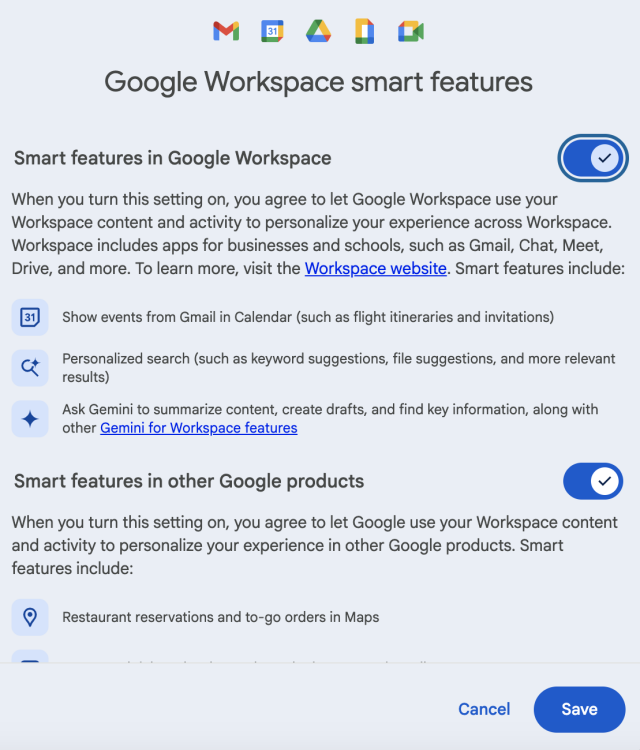
Toggle smart features on or off.
If you’re looking to turn off Gemini in Gmail, toggle off “Smart features in Google Workspace.” This will also turn off the AI for Drive, Calendar, Docs, Sheets, Slides, and Meet. The second toggle for “other Google products” will switch Gemini off for Maps, Wallet, Google Assistant, and the Gemini app itself.
Credit: Mashable screenshot / Google
Step 7:
Click “Save” at the bottom right of the pop-up.
If you want to turn Gemini on again in Gmail, follow the same steps. It’s your life.
What happens when you turn off Gemini AI in Gmail?
Switching off Gemini will remove the “Help me write” prompt, AI Overviews, email summaries, search personalisation, and other AI features. Hitting the “/” key will no longer trigger a Gemini AI prompt.
It won’t quite clear all traces of Gemini from Gmail, however. You’ll still see the sparkle icon at the bottom of all of your emails.
But clicking that icon or using the “Help me write” keyboard shortcut (Ctrl-H on Windows; Option-H on Macs) will result in a pop-up window explaining that you’ll need to turn on Gmail smart features again in order to use Gemini.