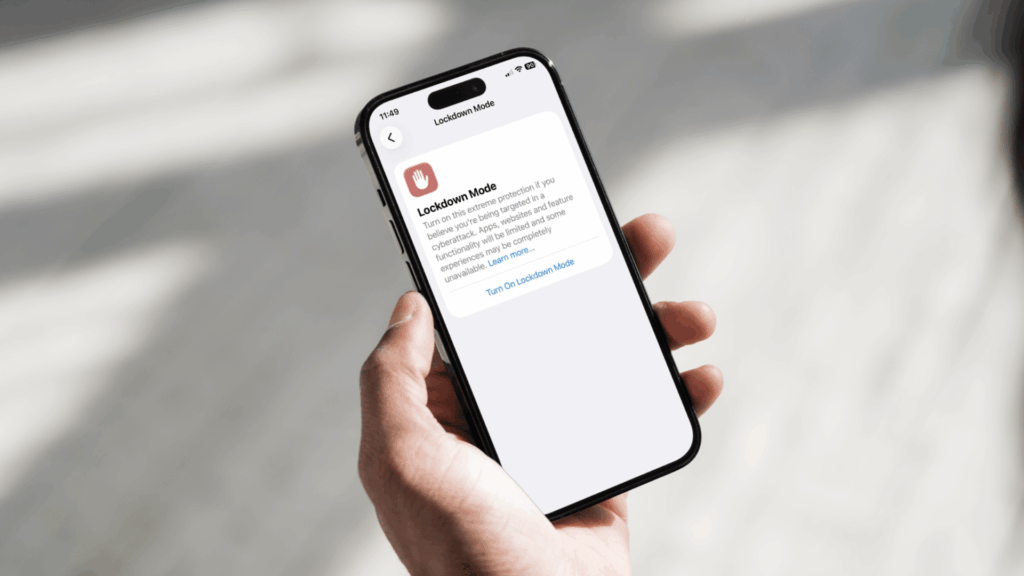
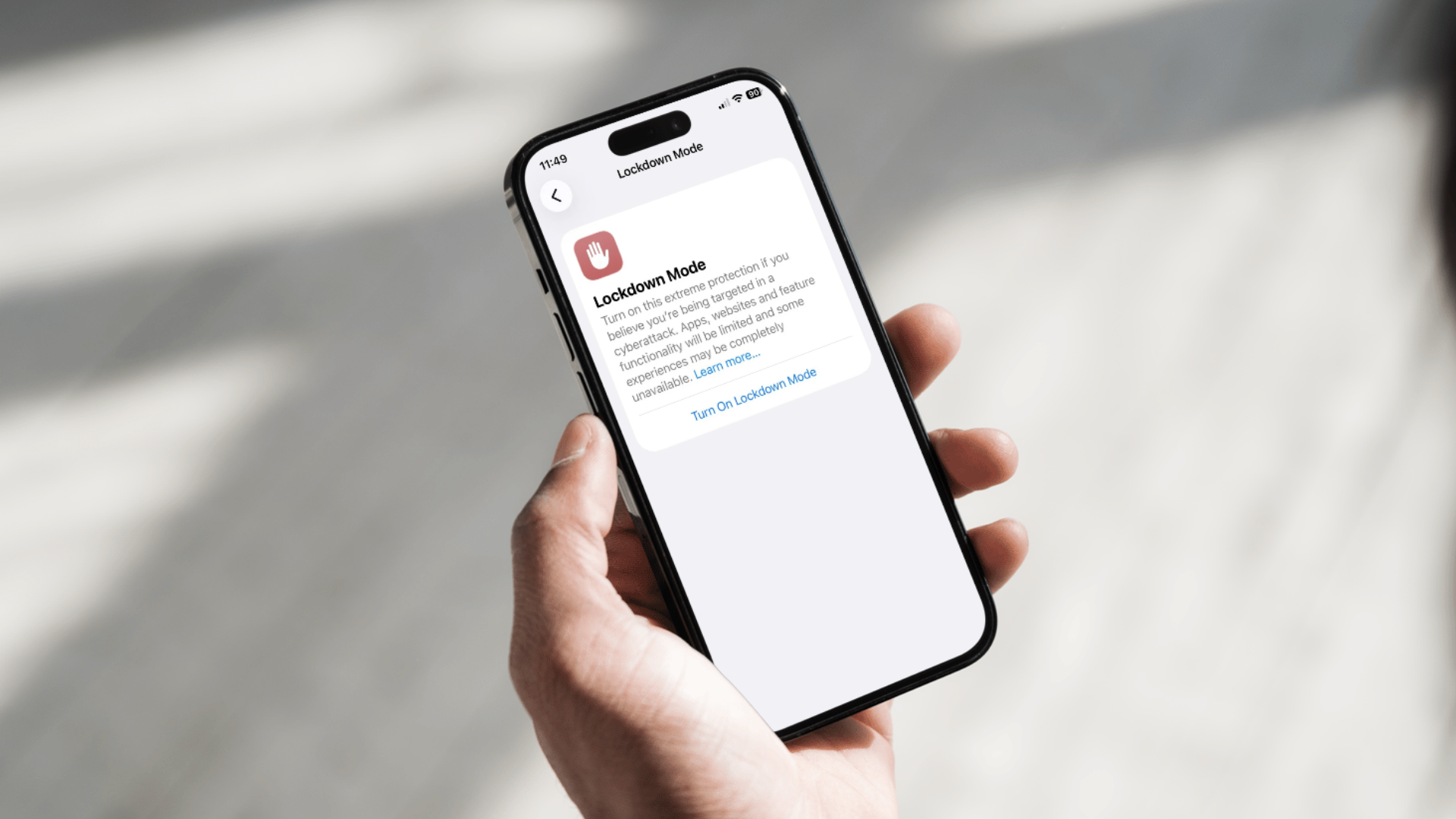
Apple’s Lockdown Mode for iPhone is getting significant attention this week.
On Wednesday, 404 Media reported the FBI has so far been unable to access the seized iPhone of a Washington Post reporter during an investigation. The barrier to entry? The publisher reports the phone has Lockdown Mode enabled, a feature Apple added in 2022 as heavy personal defense against sophisticated cyber attacks.
Added by Apple with iOS 16, Lockdown Mode was launched as “an extreme, optional protection for the very small number of users who face grave, targeted threats to their digital security,” meaning journalists, government officials, and other professionals with a high risk of being personally targeted by mercenary spyware.
However, while Lockdown Mode launched for this particular group of iPhone users, the feature has since been rolled out to all — though Apple cautions it as “extreme protection if you believe you’re being targeted in a cyberattack.”
Lockdown Mode limits certain functionalities on your iPhone — it’s also available for iPad and Mac — including restricting or blocking some apps, websites, and features. So, be warned.
How Lockdown Mode affects your iPhone
If you have Lockdown Mode enabled, Apple says:
-
Message attachments are blocked unless they’re video, images, or audio.
-
Phone calls and plain text messages work, but incoming calls won’t ring on a paired Apple Watch.
-
Incoming FaceTime calls are blocked if the device owner hasn’t called the number within the previous 30 days.
-
Link previews in Messages are disabled.
-
Wired connections with a computer/laptop are blocked if the iPhone is locked.
-
Photo location data will be omitted if you share an image, and shared albums will be removed from the Photos app — you can still see these on other devices.
-
Live Photos are unavailable.
-
Company IT teams can’t monitor these devices — configuration profiles cannot be installed, and the phone can’t be added to a company’s remote mobile device management (MDM).
-
Your iPhone won’t automatically join non-secure Wi-Fi networks.
-
2G and 3G mobile support is turned off.
-
Invitations to Apple service apps like the Home app are blocked unless you have previously invited that person.
-
Internet browsing is limited, though you can exclude an app or website in Safari from being impacted and limited by WebKit restrictions. You may receive notifications even if an app or website is blocked by Lockdown Mode.
-
Game Centre is disabled.
-
SharePlay is unavailable.
Now, here’s how to switch it on and off.
How to enable Lockdown Mode on iPhone
Make sure you’ve updated your iPhone/iPad/Mac software to the latest iOS and back up your device. Lockdown Mode works with iOS 16 or later, iPadOS 16 or later, watchOS 10 or later, and macOS Ventura or later.
You’ll have to turn Lockdown Mode separately for each device, however, if you enable it on your iPhone, your paired Apple Watch will have it switched on automatically.
- 5 min
- iPhone
Step 1:
Open Settings.
Step 2:
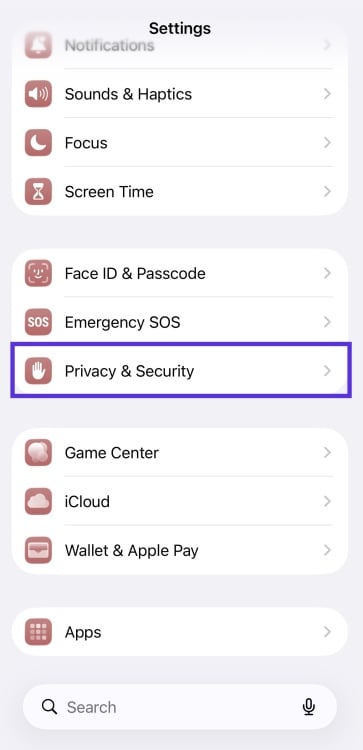
Scroll down and tap “Privacy & Security.”
Credit: Shannon Connellan / Mashable
Step 3:
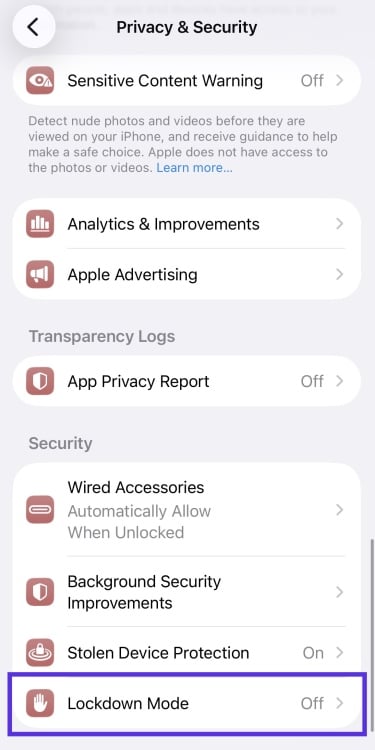
Scroll down to the bottom and tap “Lockdown Mode.”
Credit: Shannon Connellan / Mashable
Step 4:
Tap “Turn On Lockdown Mode.”
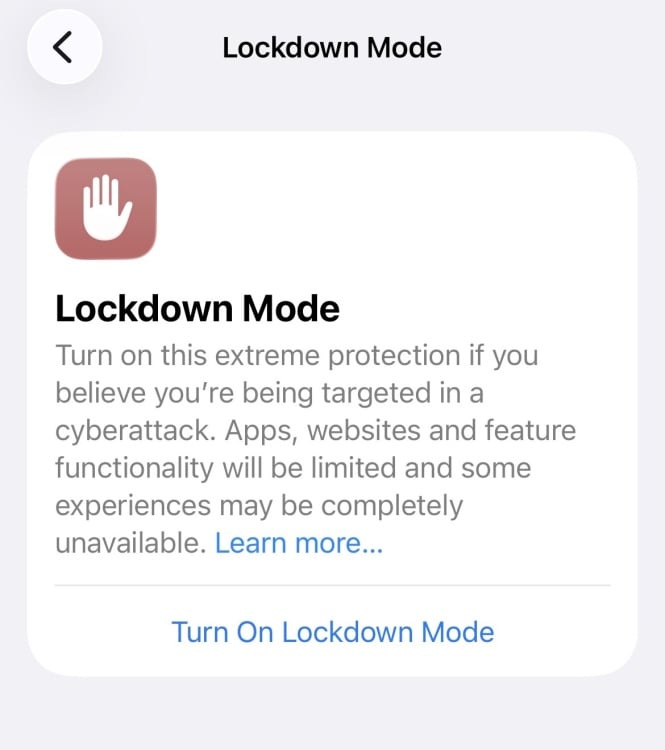
Credit: Shannon Connellan / Mashable
Step 5:
Scroll through the features (read them) and tap “Turn on Lockdown Mode” again.
Enter your Apple Account user password if required.
Step 6:
Tap “Turn On & Restart.”