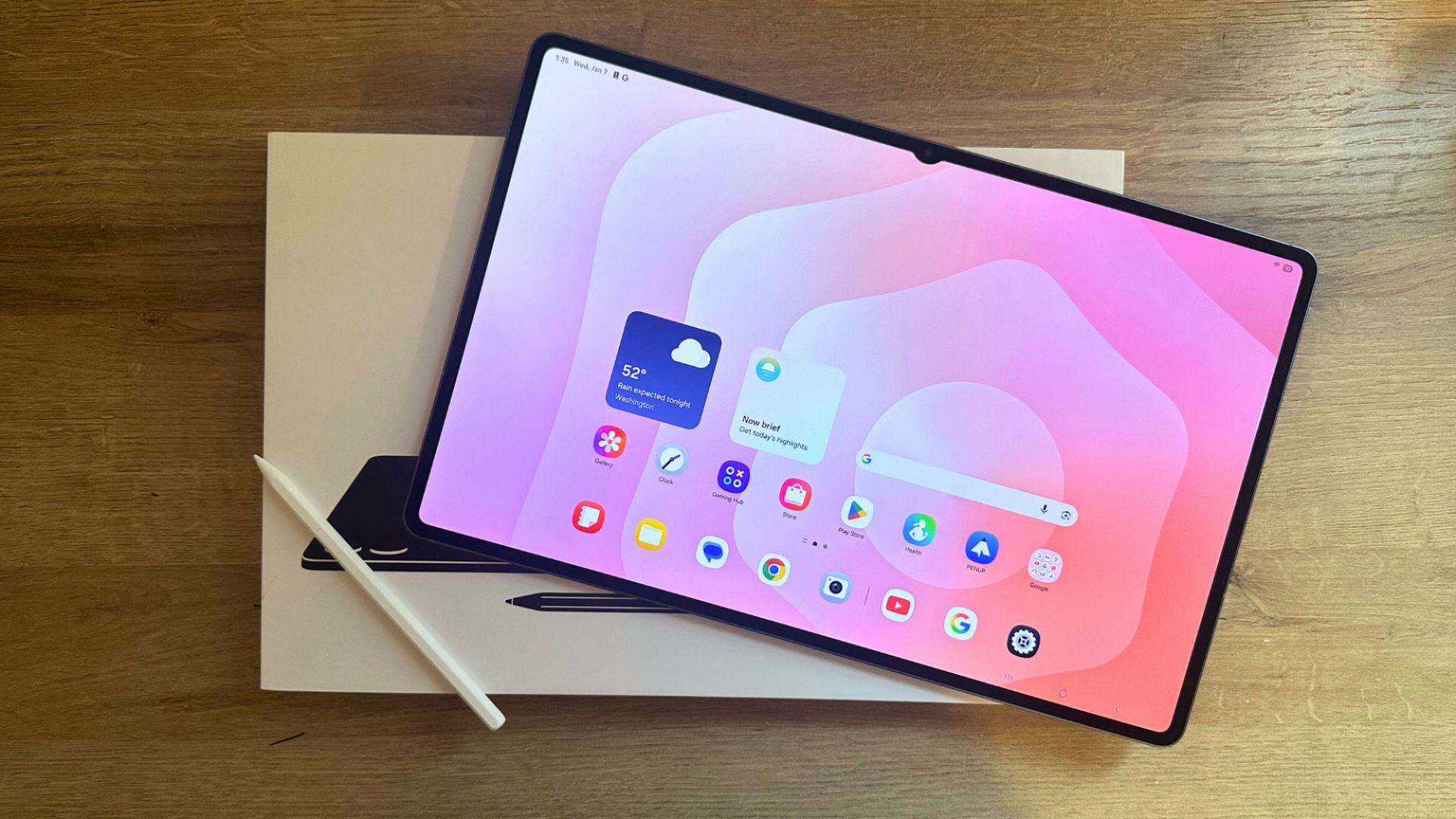
I’ve been an Apple user for over a decade now and have been out of the Android game for a while. So when I jumped into testing Android devices, I was a bit intimidated working in an unfamiliar system. Now that I’ve spent plenty of time with Androids, I have some good news. Not only does everything look the same, but it pretty much works the same, too.
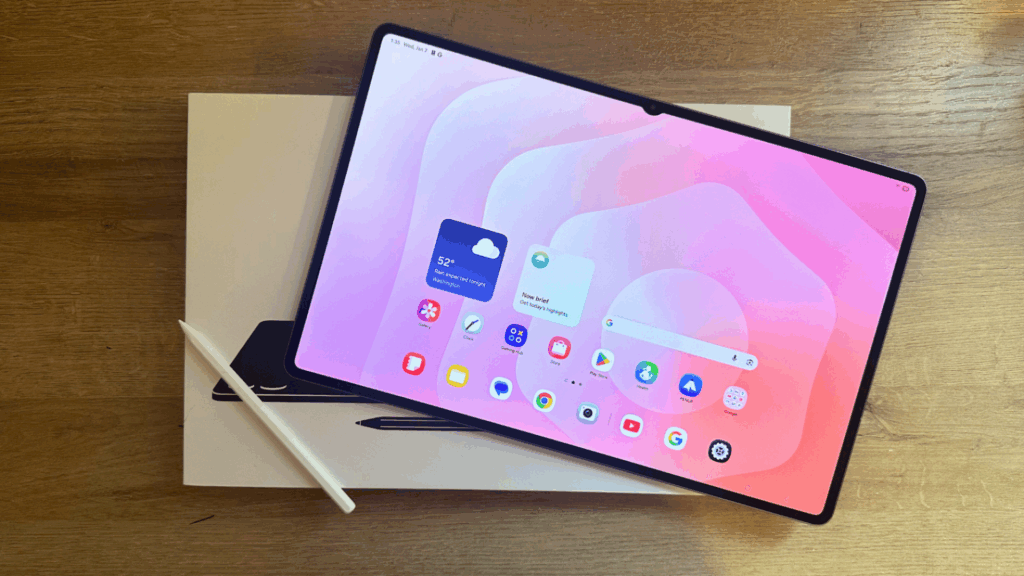
Having tested my way through all kinds of tablets, both iOS and Android models, the setup process is simple regardless of the operating system. So if you’re switching from iOS to Android or just got a new tablet, here’s how to set up an Android tablet.
How to set up an Android tablet
Credit: Samantha Mangino / Mashable
- 10 minutes
- Android tablet
- Google account
- WiFi access
Step 1:
Power on your tablet
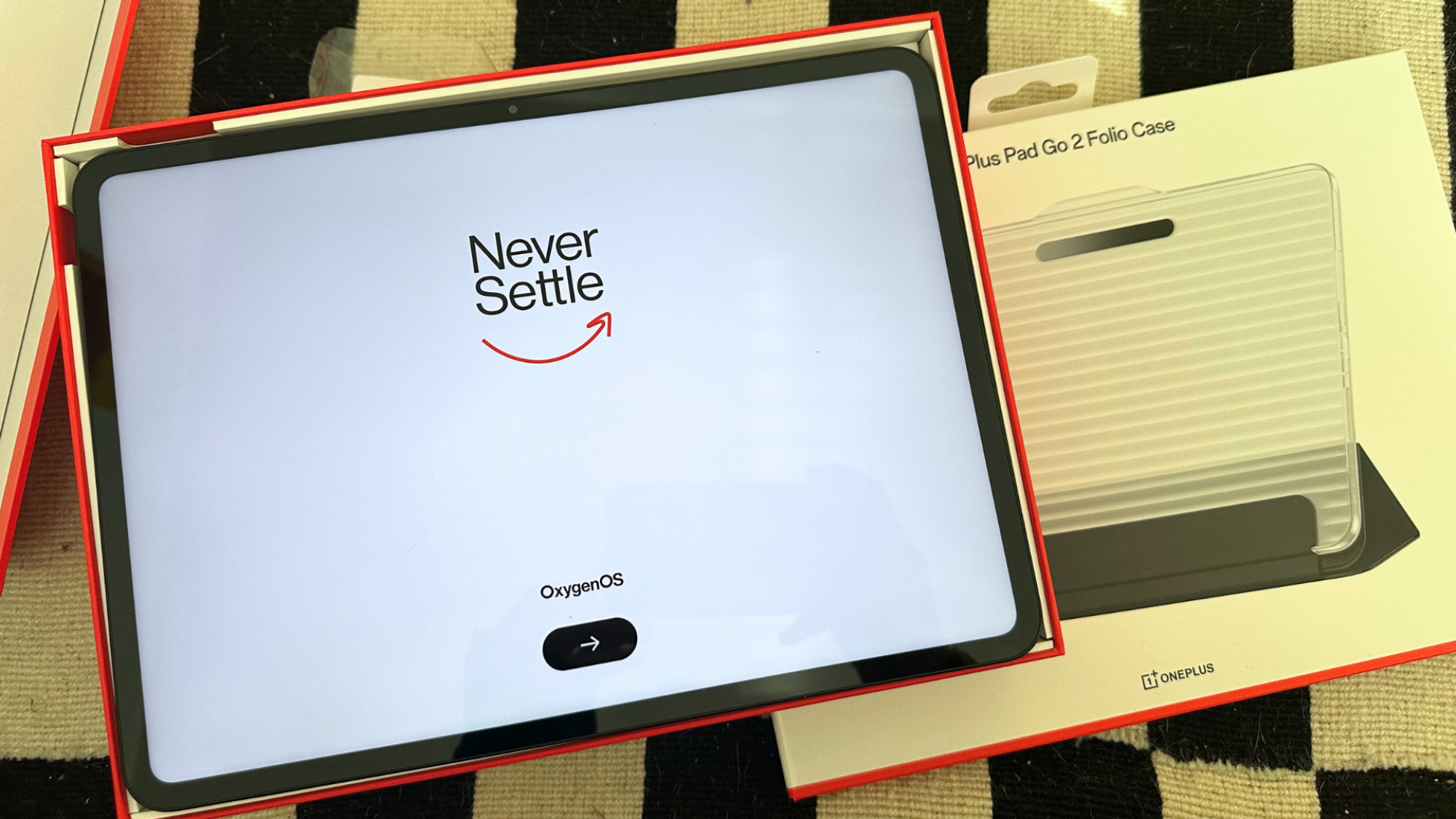
This is the most straightforward step. When you get your tablet out of the box, turn it on.
Step 2:
Follow the prompts
Any tablet I’ve used, both Android and Apple, has started out with the same prompts. The first will have you select your language, followed by how you’d like to set up the device. The options listed will be an Android device or an iPhone/iPad. You can select which device you use; however, you don’t need to use either to set up the device if you’re not looking to copy over any data.
Step 3:
Connect to WiFi
At this point in the setup, you’ll need to connect to WiFi. Enter the credentials for the network now. If you don’t have WiFi access, you won’t be able to complete the setup.
Step 4:
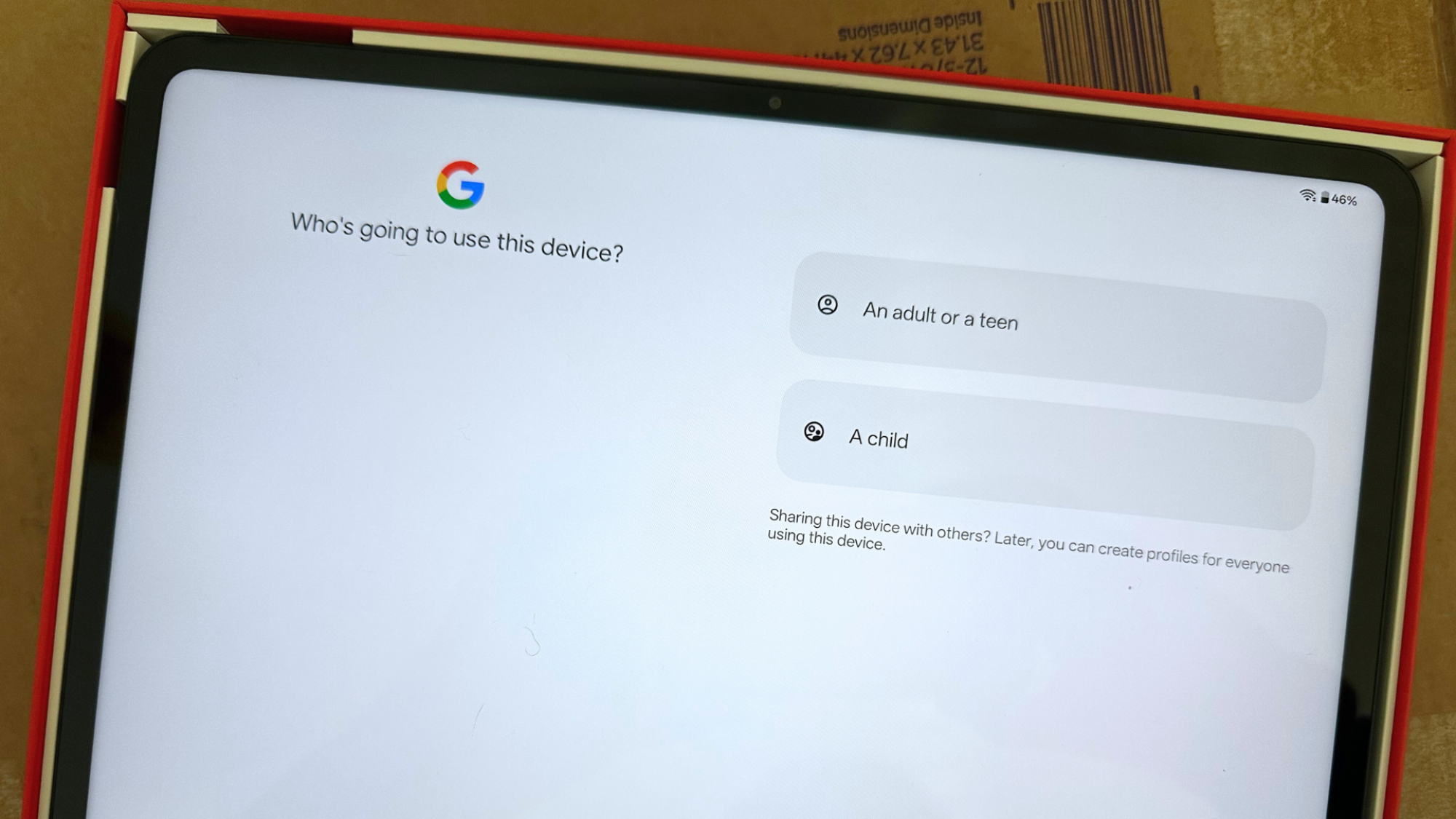
Enter Google account information.
To use an Android tablet, you’ll need a Google account. This is where Android and Apple devices differ. Apple devices require an Apple login, and Androids use Google. With your Google account, Gmail, Google Photos, and Drive will all be linked to your tablet.
Credit: Samantha Mangino / Mashable
Step 5:
Download additional apps
Once you’re logged into your Google account on the tablet, you’re set to start using the device. To download your essential apps, go through the Google Play Store, which has access to all the essentials.